Docusign PowerForms vs Web Forms vs Formesign: which is best for a PDF anyone can sign?
"Customers are bailing out before completing the Powerform and we are burning thru envelopes"- Docusign Community
You have a PDF that many people sign: a waiver, a consent form, a membership agreement, an application. Emailing it to each person doesn't scale, so you want one public link. Anyone with it should be able to open the PDF, fill it in and sign it, and you should get a separate signed copy for each person. Docusign offers two ways to do this, PowerForms and Web Forms, and Formesign PDF Signature offers a third. We set up the same one-page climbing waiver in each, with 15 blanks, an adult signer and a parent or guardian who signs only for a minor. Formesign placed all 15 fields and gave us a link in about three minutes. In Docusign we placed 13 of the 15 by hand.
Below is a quick verdict, a section on each tool, a comparison table, how each one handles signer identity, and which to choose.
Quick verdict
- Docusign PowerForms: you already send your agreements through Docusign templates, and a few people a month sign from a link.
- Docusign Web Forms: you're on a Docusign plan that includes them, and you want signers to answer questions before they see the document.
- Formesign PDF Signature: you want to start from the PDF you have and get a signing link in minutes, with optional signers and a price that covers many signers a month.
What makes a PDF "anyone can sign"
- One reusable link that many people use on their own.
- No signer named in advance.
- A separate signed PDF and record for each person who signs.
- Extra signers when needed, such as a guardian or a witness, and only when needed.
- An audit trail of who signed and when.
Docusign PowerForms
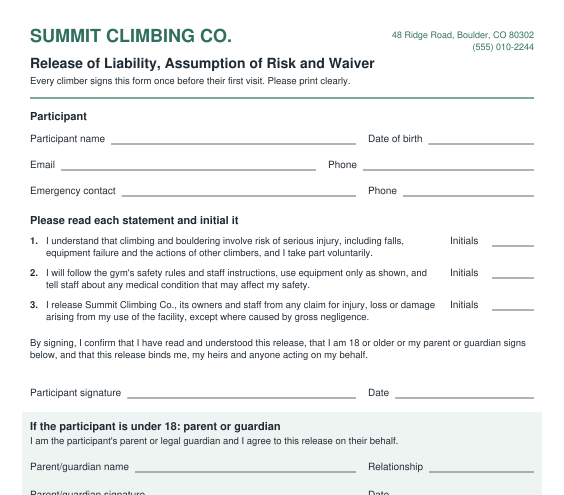
- How it works: you build an envelope template from your PDF, with a role for each signer and the fields placed on the page, then create a PowerForm from it. The PowerForm gives you a link to put on your website or in an email.
- Signer experience: the signer enters their name and email, then fills in and signs the PDF itself in Docusign's signing screen. On a phone, that means working on a page laid out for paper.
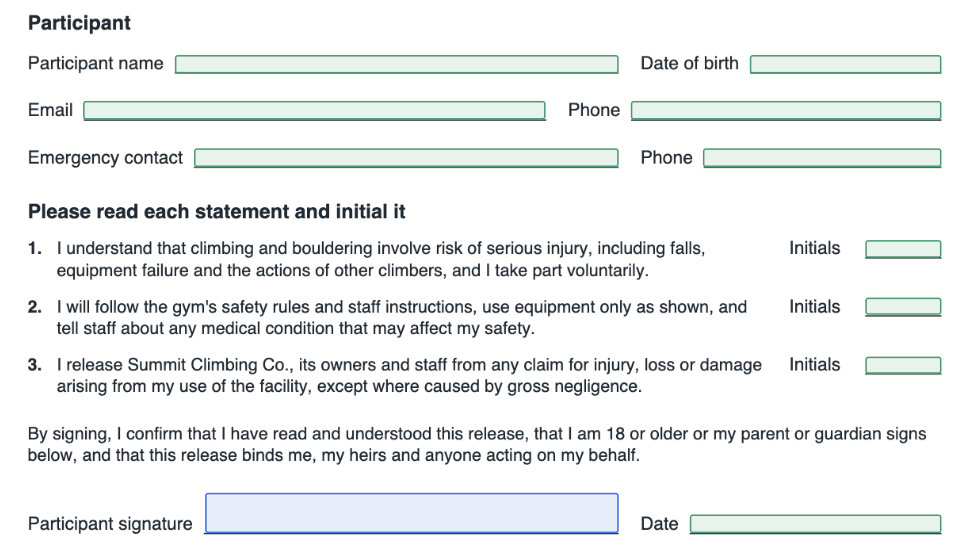
- What we saw: building the template, Docusign's AI field detection placed 2 of the 15 fields and put the participant's signature on the guardian's role. We placed the other 13 by hand. PowerForms weren't switched on for our Business Pro account: the page said "Contact your admin to get started", and Docusign's forum says to ask support. So the signer side here comes from Docusign's documentation.
- Pros: part of Docusign, which many businesses already trust and pay for; works with the templates you already have.
- Cons: you build the template first; signers sign a page made for paper; every PowerForm someone starts uses an envelope, even if they give up (the quote at the top).
- Plan: Business Pro or above, $40 a user a month billed yearly, with 100 envelopes a user a year.
- Best for: teams that already run their agreements on Docusign templates.
Docusign Web Forms
- How it works: you create a Web Form from an envelope template, or from scratch for data collection only. Docusign turns the template's fields into questions and, once the form is submitted, sends the answers into an envelope for signing.
- Signer experience: the signer clicks Start, answers one page of questions, checks a summary, and then signs the filled PDF in Docusign's signing screen. Docusign describes Web Forms as mobile-friendly, with conditional logic.
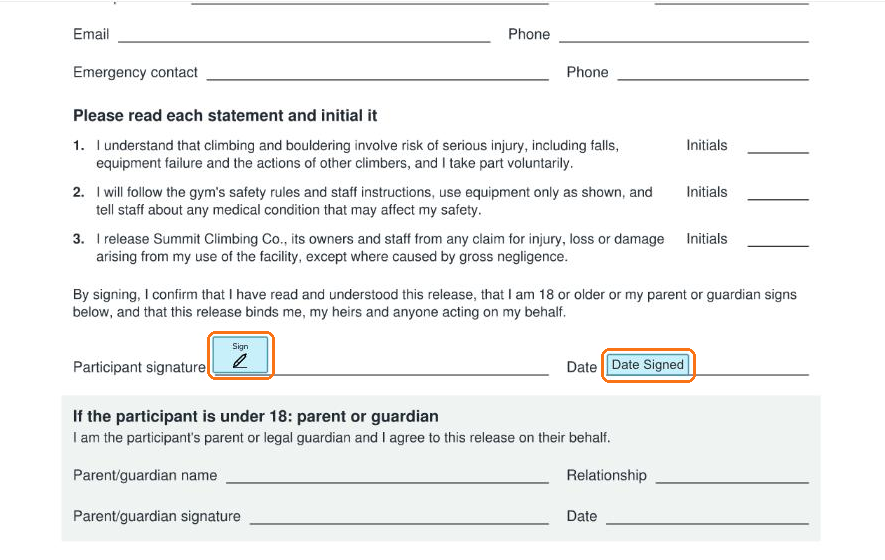
- What we saw: the Web Form wouldn't build until the participant came first in a signing order and 4 text boxes had descriptive data labels, listed in a file to download. In the form Docusign built, the guardian's name and email were required. Our adult participant had to make one up, and the envelope then waited for that guardian, so the adult's waiver never completed.
- Pros: a guided form before the document; an envelope is used only once the form is submitted.
- Cons: needs the same template first, plus extra setup; every signer on the template must sign, so a guardian who signs only for minors needs a second template.
- Plan: Business Pro or above, the same plan as PowerForms.
- Best for: organizations already on Business Pro that want guided intake in front of a document everyone signs.
Formesign PDF Signature
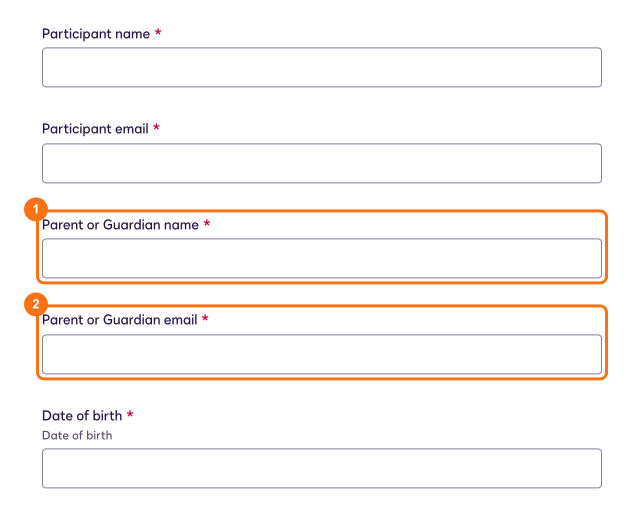
- How it works: you upload the PDF. Formesign reads the page, places a box on each blank, finds the signers, and gives you a reusable link. Each response becomes its own signed PDF. The steps, with screens, are in How to turn a PDF into a form people can sign.
- The key choice: Yes, keep my PDF exactly as it is gives a signed PDF identical to your original. No, turn it into a form I can edit gives a form whose signed PDF follows the new layout; that path is Formesign's form signature.
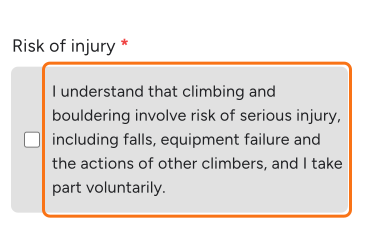
- Signer experience: the signer reads the PDF, fills it in as a form sized for a phone with each statement shown in full, reviews the filled PDF and submits. By default each signer signs in with Google first; set the signature's Verify identity to Not required for signers without a Google account.
- What we saw: all 15 fields placed and named after their labels, both signers found, and the guardian marked optional because the section is for participants under 18. Our adult participant left the guardian blank, and the document completed as signed by everyone.
- Pros: no template to build; starts from the PDF you have; both layout choices; signed PDFs saved to Google Drive or emailed.
- Cons: initials on the PDF become a tick box beside each statement; Google sign-in is on until you turn it off; Basic allows 5 forms; a PDF can have up to 6 pages.
- Plan: Basic $18 a month billed yearly for 100 responses a month, Premium $28 for 200, Business $38 for 300. See pricing.
- Best for: small and mid-sized organizations that want a working signing link from an existing PDF quickly.
Comparison table
| Docusign PowerForms | Docusign Web Forms | Formesign PDF Signature | |
|---|---|---|---|
| Reusable public link | Yes | Yes | Yes |
| Starts from your PDF | Through a template | Through a template | Yes, upload it |
| Template to build first | Yes | Yes | No |
| Fields placed for you, in our test | 2 of 15 | 2 of 15 | 15 of 15 |
| Signed PDF in the original layout | Yes | Yes | Yes |
| Phone-sized form for the signer | No, the signer works on the PDF | Yes | Yes |
| Multiple signers | Yes | Yes | Yes |
| Second signer only when needed | Possible, says a forum answer | No, in our test | Yes |
| Signed PDF per signer | Yes | Yes | Yes |
| Audit trail | Certificate of completion | Certificate of completion | Certificate of Completion |
| Signer account needed | No | No | Google sign-in by default; can be turned off |
| Signed copies go to | Docusign, and email | Docusign, and email | Google Drive, and email |
| When a credit is used | When a signer starts, even if they give up | When the form is submitted | When a response is submitted |
| Plan, billed yearly | Business Pro: $40 a user a month, 100 envelopes a user a year | Basic: $18 a month, 100 responses a month | |
Public access vs signer identity
- Docusign PowerForms: anyone with the link can open it. In Direct mode, Docusign doesn't check the email the signer types, and Docusign's own guidance says this makes the signer's identity hard to prove. In Email mode, Docusign emails a code that the signer enters first.
- Docusign Web Forms: our Web Form's access setting was Public, and Docusign lets you change it later. The signer's name and email come from what they type in the form.
- Formesign: anyone with the link or the QR code can open it. With Verify identity set to Google Sign-in, each signature is tied to a Google account. With Not required, the Certificate of Completion records a signer on a shared link as Anonymous.
Which should you choose?
- Choose PowerForms if your agreements already live in Docusign templates and a few people a month sign from a link.
- Choose Web Forms if you're on Business Pro, want questions before the document, and every signer on the template always signs.
- Choose Formesign if you want to start from your own PDF, need a second signer only sometimes, or expect many signers a month.
- Waivers signed on phones at the door: Formesign, with a QR code at the desk, a phone-sized form, and a guardian only for minors.
- HR or legal documents that must keep their exact layout: any of the three keep the PDF's layout; PowerForms if HR already uses Docusign, Formesign with Yes, keep my PDF exactly as it is if not.
- High-volume public sign-ups: Formesign, whose yearly Basic plan covers up to 1,200 responses for $216, against 100 envelopes for $480 on one Business Pro seat.
- A team already paying for Docusign Business Pro: try Web Forms first; an abandoned form doesn't use an envelope.
FAQ
What's the difference between PowerForms and Web Forms?
Can people sign without creating an account?
Does each signer get their own signed PDF?
Can I put the signing link on my website?
Can a second signer be optional?
Riepilogo
Ultimo aggiornamento: